Chapter 7: Other Common Settings
 [
[ ](https://doc.aeroeggtech.com/en/uploads/images/gallery/2026-04/image-1777296476516.png

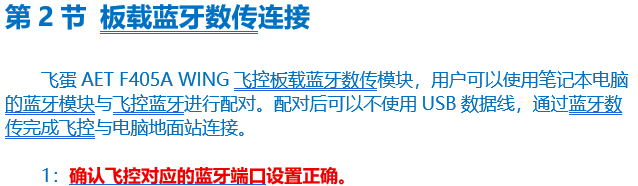
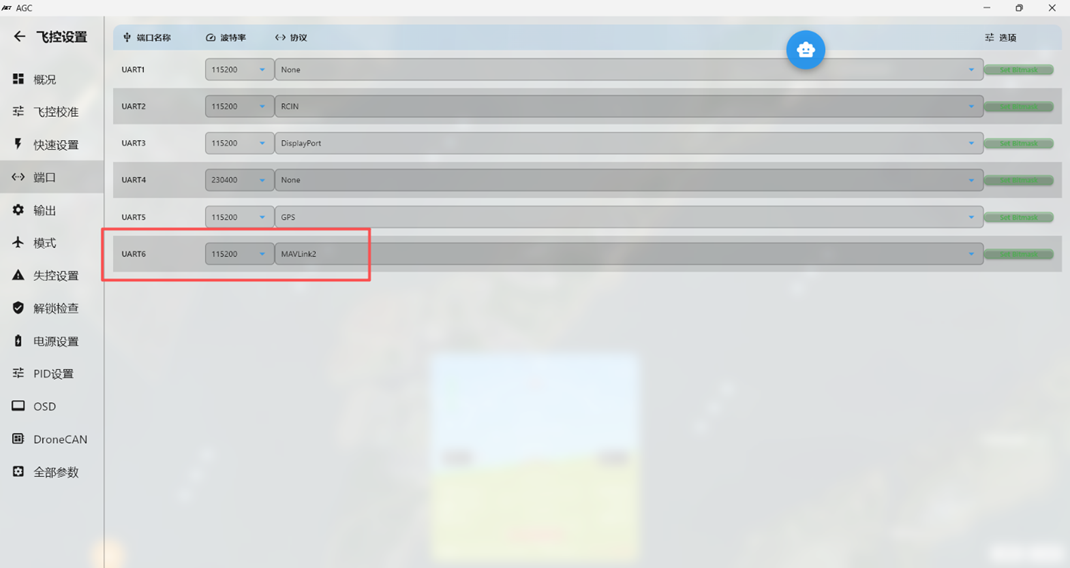 Return to the Output page and confirm that Serial6, which corresponds to the Bluetooth module, is configured correctly as shown above.
2: Disconnect the USB cable and connect the flight battery to the flight controller. After the flight controller completes its startup checks, open Bluetooth & other devices on the computer and connect to AET-F405A-spp.
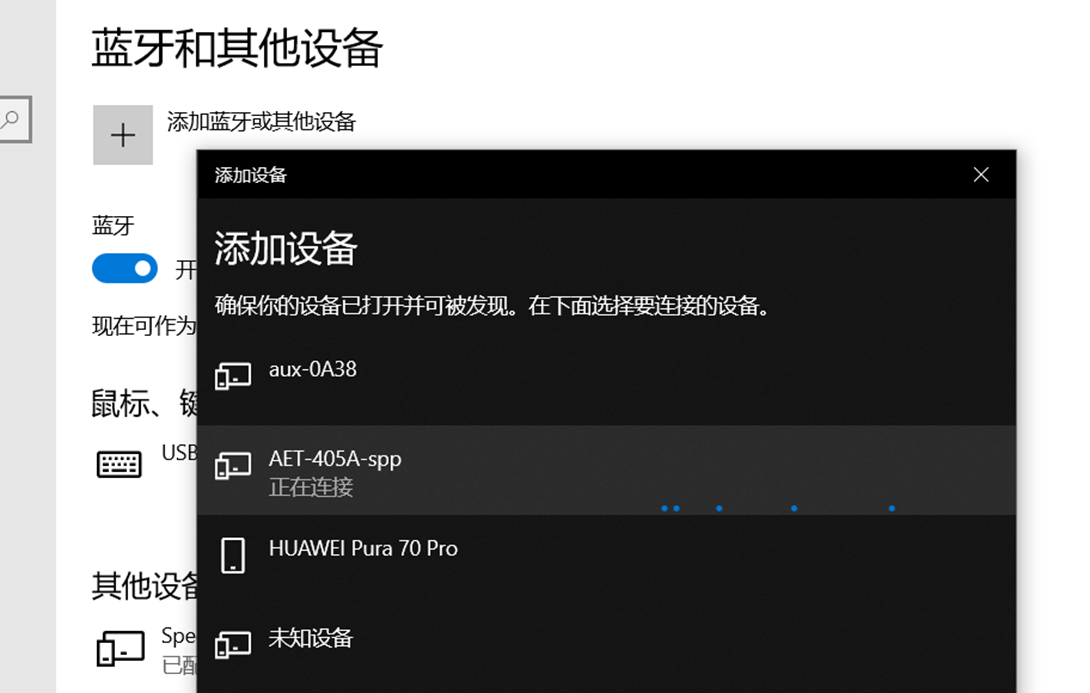 After clicking Connect, wait for the computer to pair with the flight controller and automatically install the Bluetooth serial-port driver. When the device setup completion message appears, open Device Manager and identify the COM port assigned to the Bluetooth device.
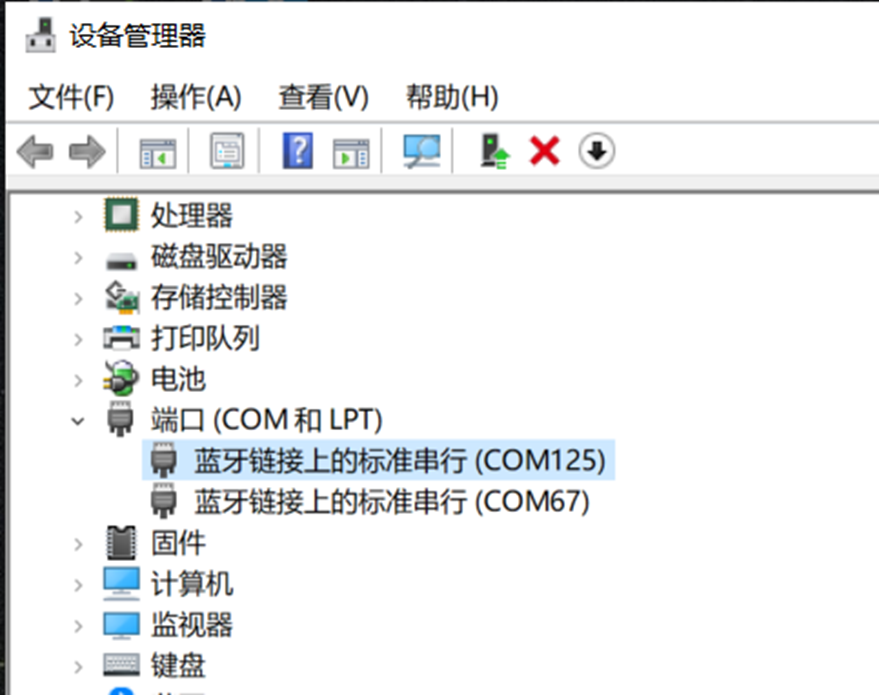 3: After confirming the COM port assigned to the Bluetooth connection (the port number varies by computer), open Mission Planner. Select the Bluetooth device COM port from the port menu in the upper-right corner, then click Connect.
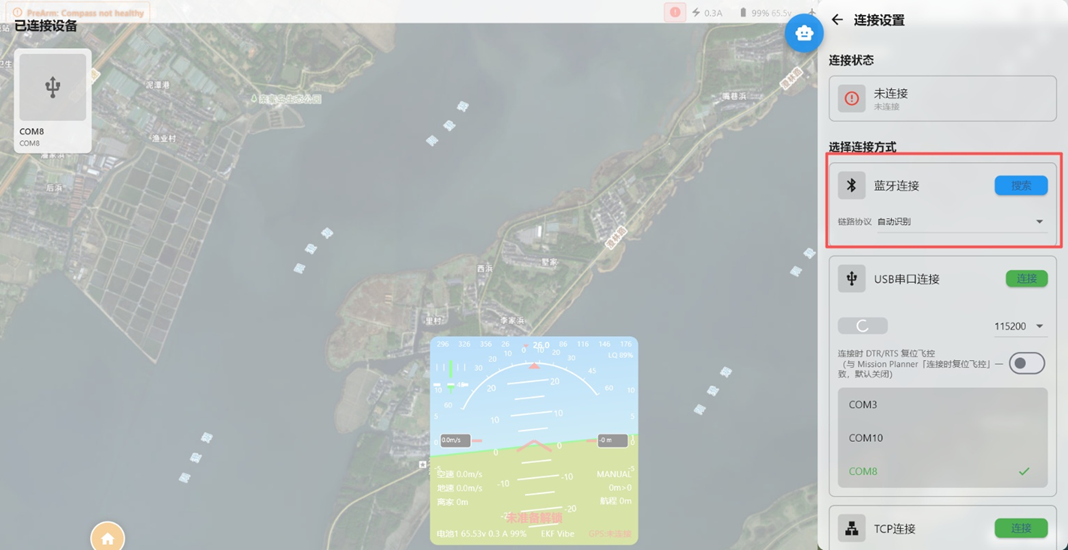 The ground station will connect to the flight controller through the Bluetooth serial port and read flight controller data normally. Operation is equivalent to a USB data connection. After connection, you can perform normal configuration and tuning.