Chapter 1: Firmware Flashing
Chapter 1: Flight Controller Firmware Flashing
The AeroEgg AET H743 Basic flight controller currently supports ArduPilot and INAV firmware. This guide focuses on configuration and tuning for fixed-wing aircraft running ArduPilot. Firmware flashing can be used to upgrade the flight controller to the latest firmware. Download the required firmware from the AeroEgg Technology firmware site: https://download.aeroeggtech.com/
Download the manufacturer-provided arduplane_with_bl_AET-H743-Basic_V4_5_7 HEX firmware file, which includes the BL bootloader, to the computer.
Open INAV Configurator.
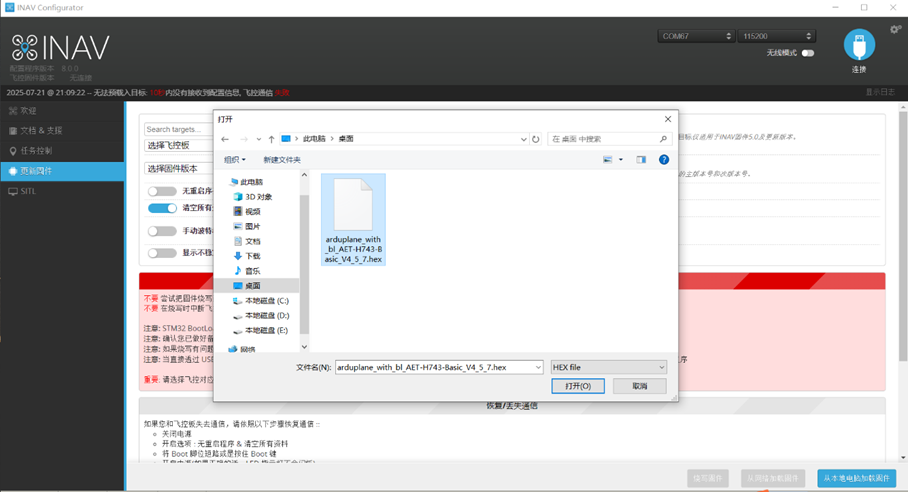
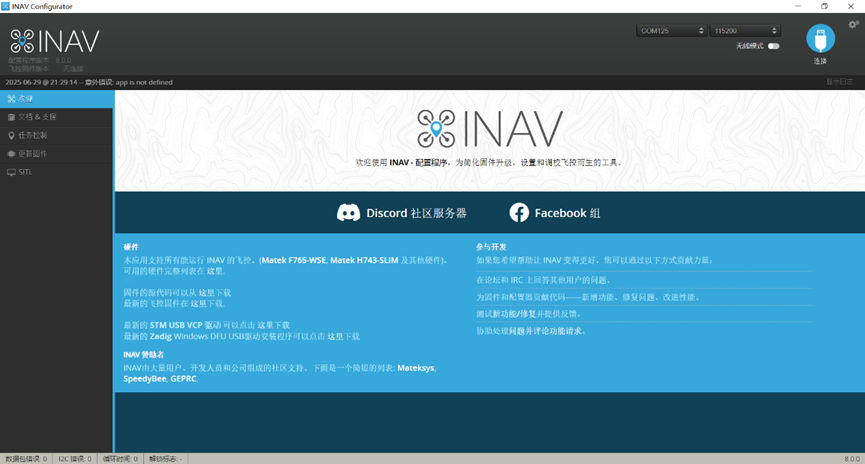 Click Firmware Flasher on the left, select Load Firmware [Local] in the lower-right corner, and choose the flight controller firmware file downloaded to the computer.
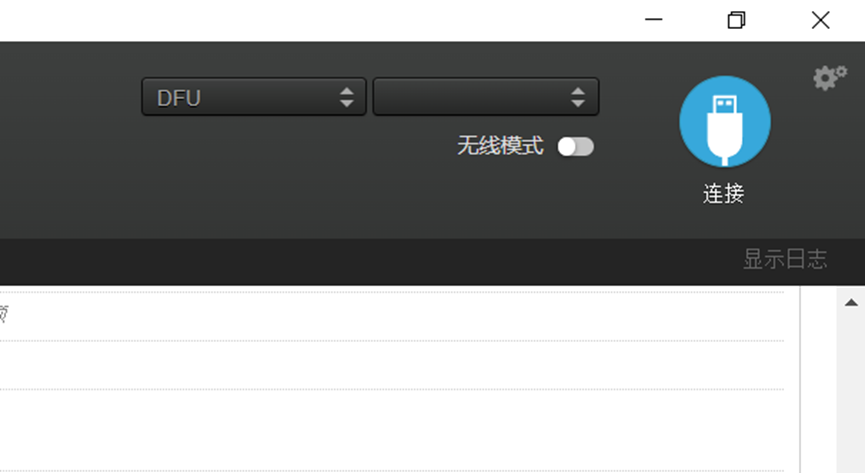
 Hold down the flight controller's Boot button and connect the flight controller to the computer with a USB Type-C data cable. When the connection succeeds, DFU appears in the upper-right corner of INAV Configurator, indicating that firmware flashing mode is available.
 Some computers may not recognize DFU mode because of a driver issue. In Windows Device Manager, expand Universal Serial Bus devices and check whether DFU in FS Mode is listed.
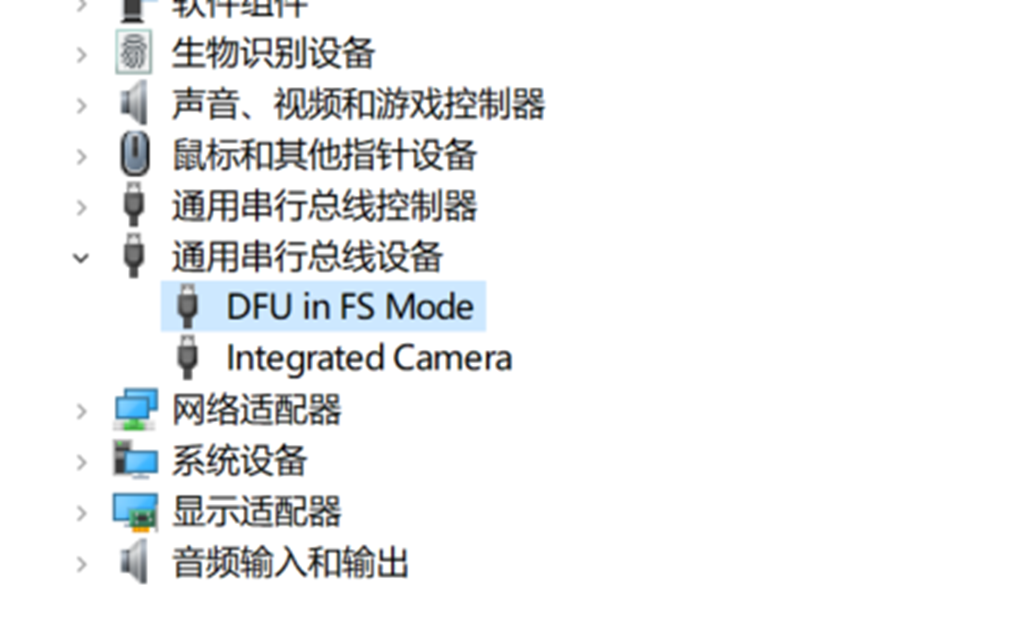 If the device is marked with an exclamation point, its driver must be installed.
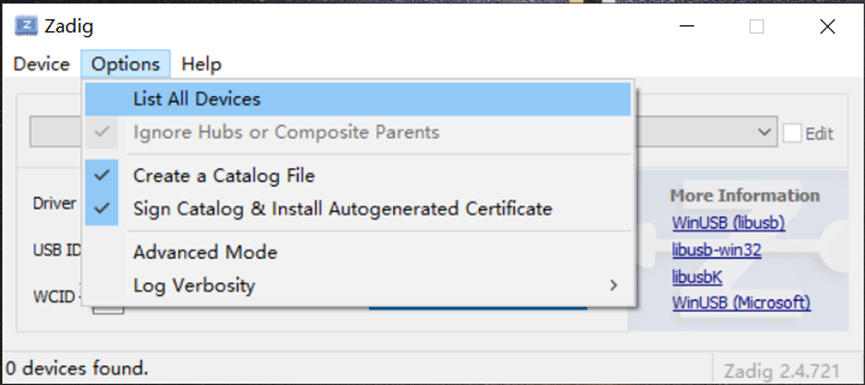
Run Zadig, open Options, and enable the first menu item, List All Devices.
If the device is marked with an exclamation point, its driver must be installed.
Run Zadig, open Options, and enable the first menu item, List All Devices.
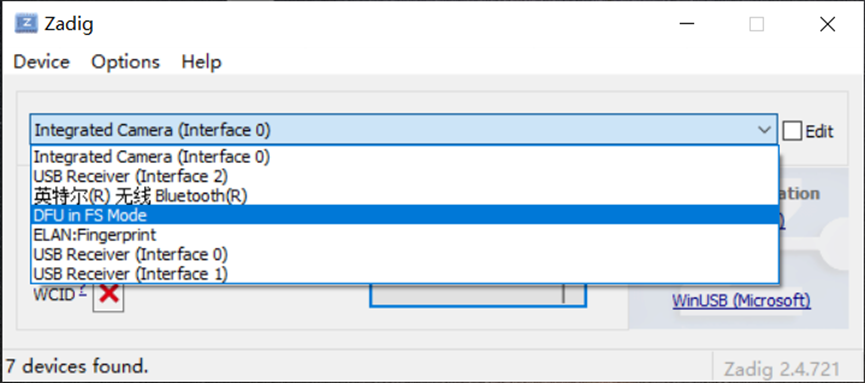
 Select DFU in FS Mode from the device drop-down list on the main page.
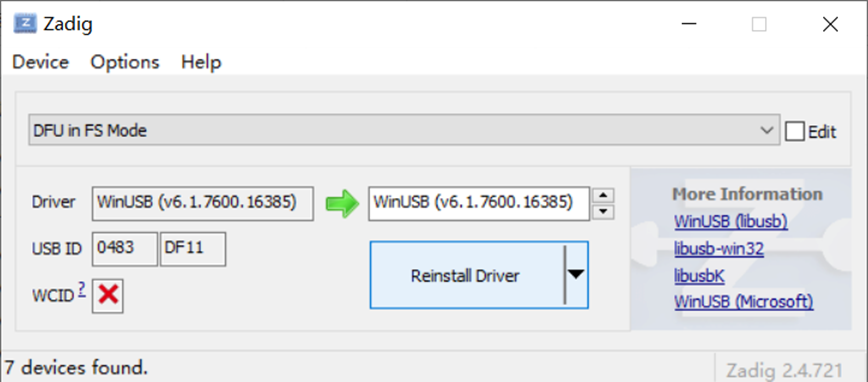
 Click Upgrade Driver to install the driver.
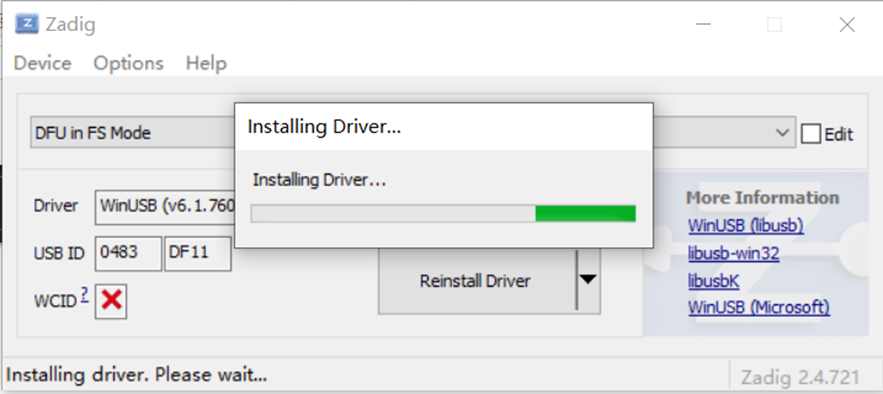
 Wait for the driver installation to finish. Disconnect the flight controller from USB, then hold the Boot button and reconnect USB. DFU mode should now be detected correctly.
 Click Flash Firmware. INAV Configurator first erases all existing data on the flight controller.
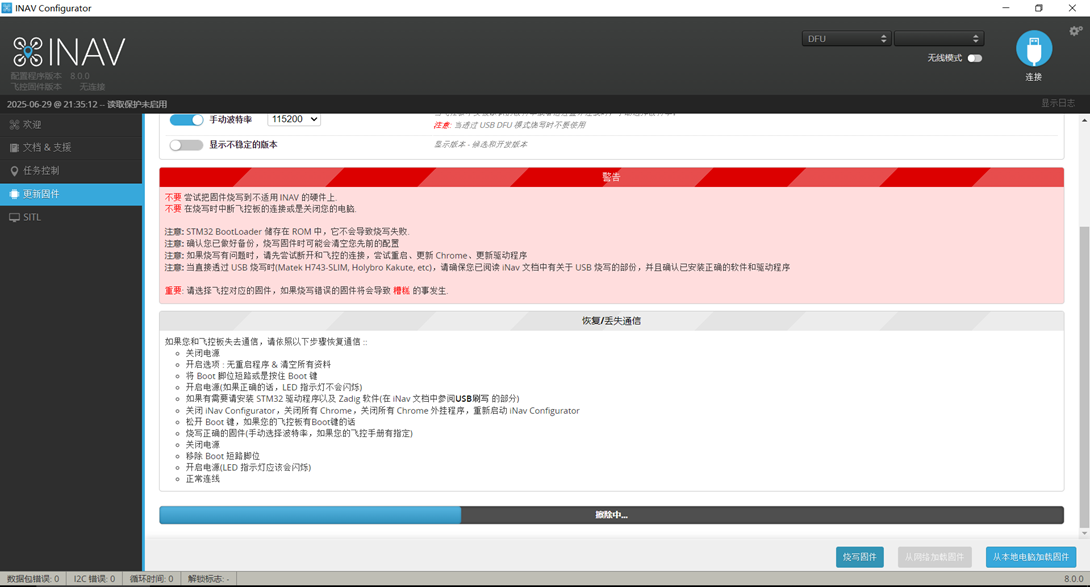 Wait while INAV Configurator flashes the firmware to the flight controller.
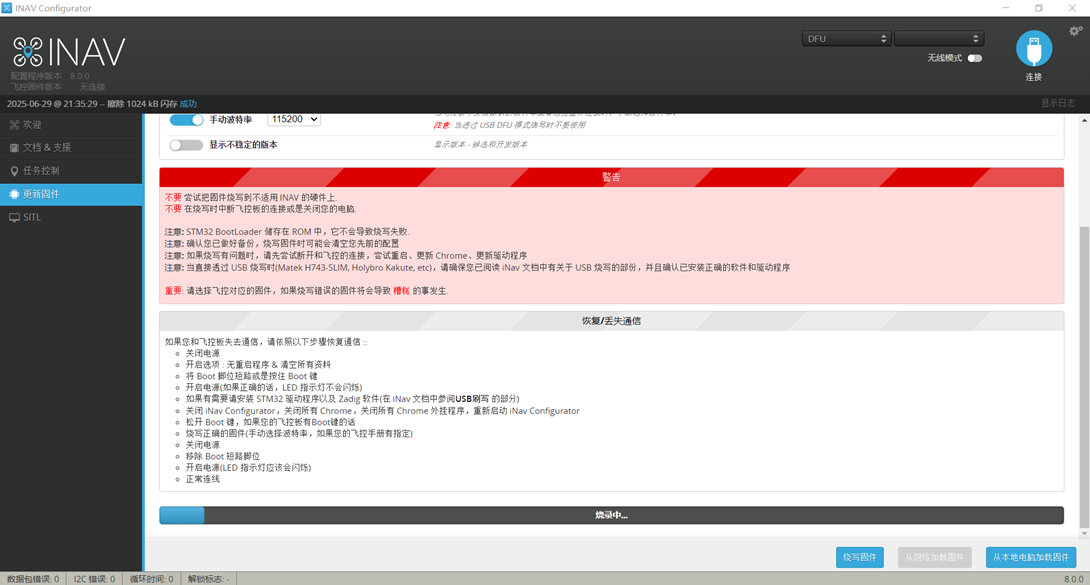 After flashing is complete, verification starts automatically.
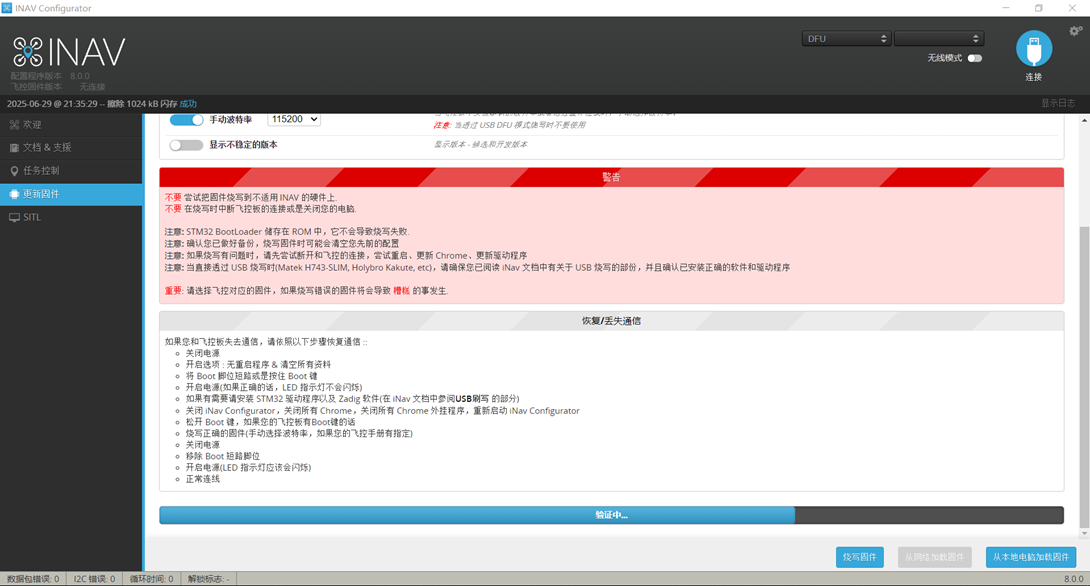 When Programming: SUCCESSFUL is displayed, firmware writing is complete.
Close INAV Configurator, disconnect the flight controller from USB, and reconnect it to the computer.
When Programming: SUCCESSFUL is displayed, firmware writing is complete.
Close INAV Configurator, disconnect the flight controller from USB, and reconnect it to the computer.
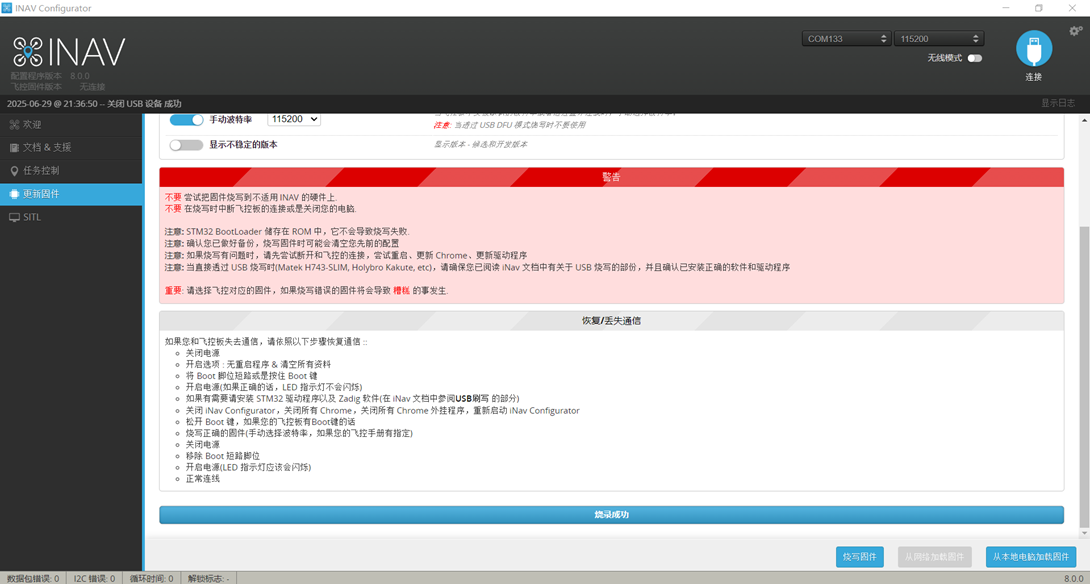 The flight controller firmware update is now complete.
Important: Disconnect all serial-bus peripherals throughout the firmware flashing process, including SBUS receivers, ELRS receivers, CRSF receivers, GPS modules, digital video air units, and telemetry links.
The flight controller firmware update is now complete.
Important: Disconnect all serial-bus peripherals throughout the firmware flashing process, including SBUS receivers, ELRS receivers, CRSF receivers, GPS modules, digital video air units, and telemetry links.