Chapter 11: Connecting the Onboard Bluetooth Telemetry Link
The AeroEgg AET F405A WING flight controller includes an onboard Bluetooth telemetry module. You can pair it with a laptop Bluetooth adapter and connect the flight controller to the computer ground station over Bluetooth without a USB cable.
1: Confirm that the flight controller Bluetooth port is configured correctly.
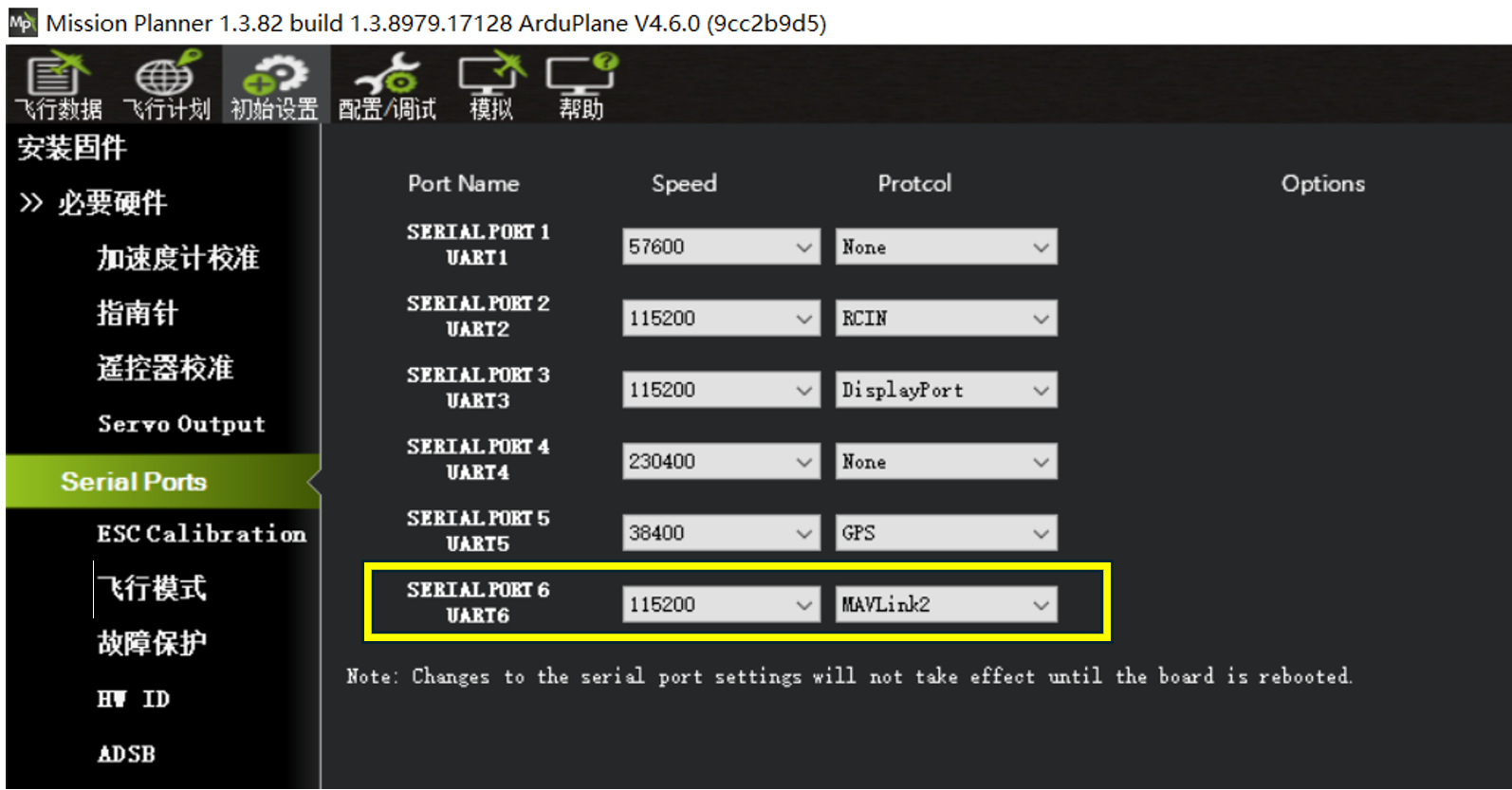
On the Serial Ports page, confirm again that Serial6, which corresponds to the Bluetooth module, is configured correctly as shown above.
2: Disconnect the USB cable and connect the flight battery to the flight controller. After startup and self-test are complete, open the computer Bluetooth and other devices page and connect to AET-F405A-spp.
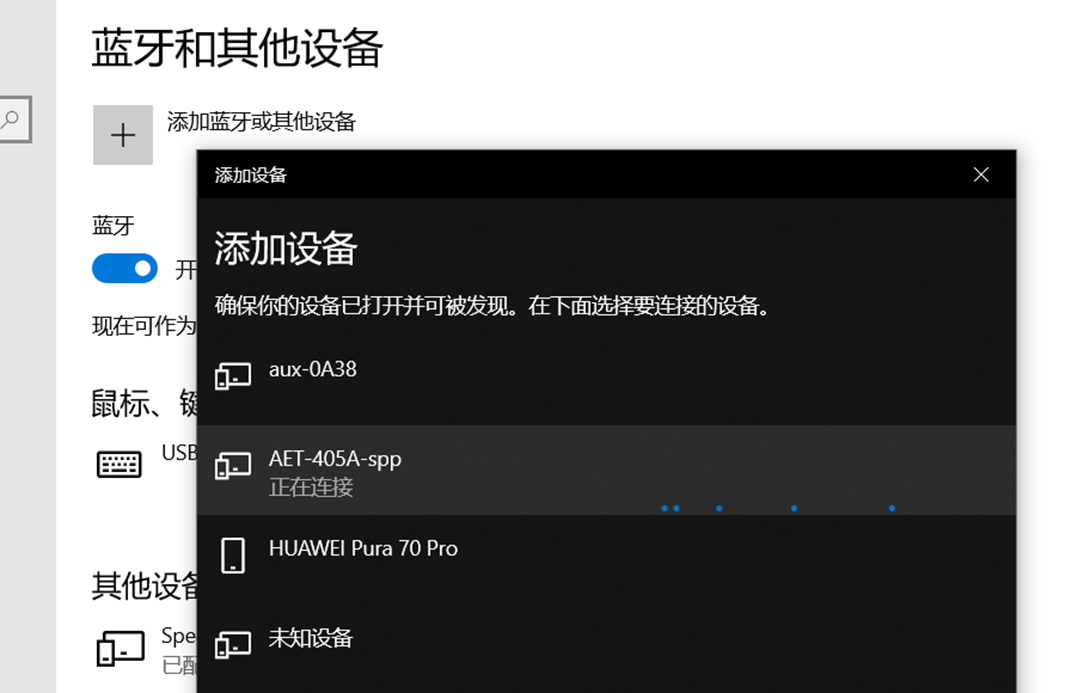
After initiating the connection, wait for the computer and flight controller to pair and for the Bluetooth serial-port driver to install automatically. When device configuration is complete, open Device Manager and identify the port assigned to the Bluetooth device.
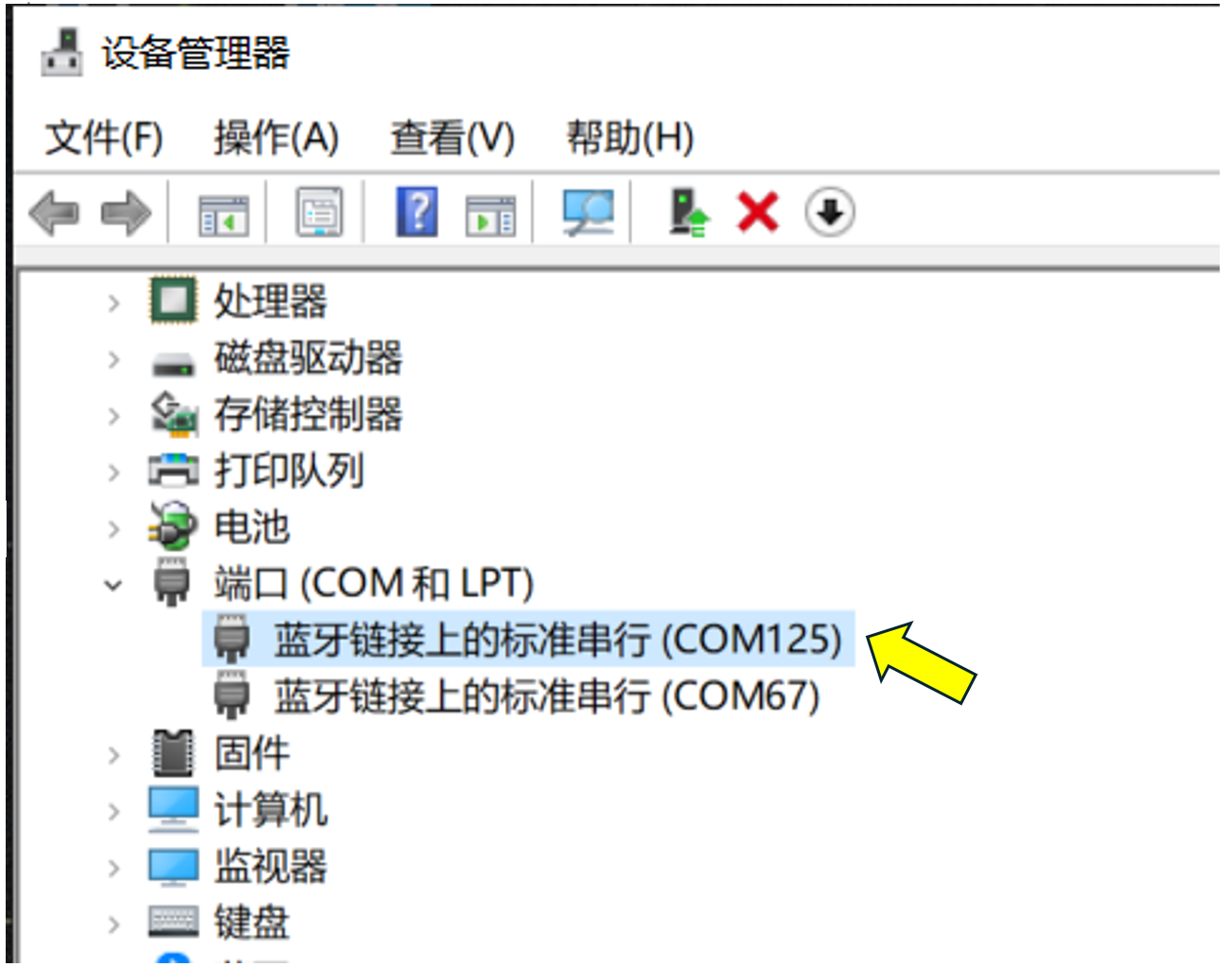
3: Confirm the port number assigned to the Bluetooth connection. The assigned port varies by computer, so select the port shown on your system.
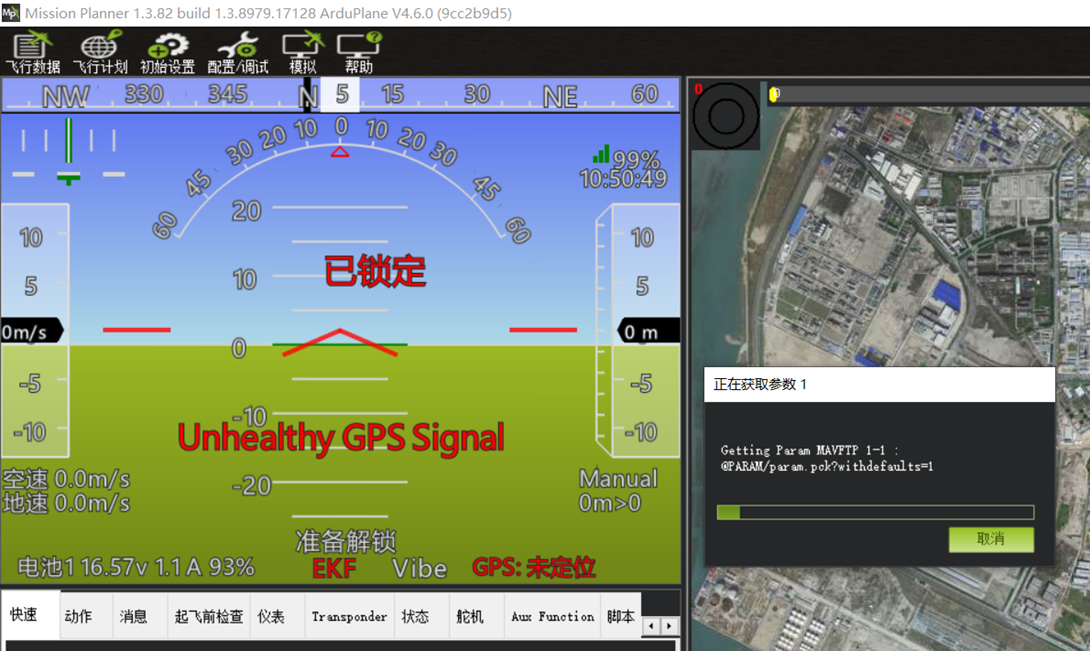
Open Mission Planner configuration and tuning software.
Select the Bluetooth device port from the port drop-down menu in the upper-right corner, then click Connect.
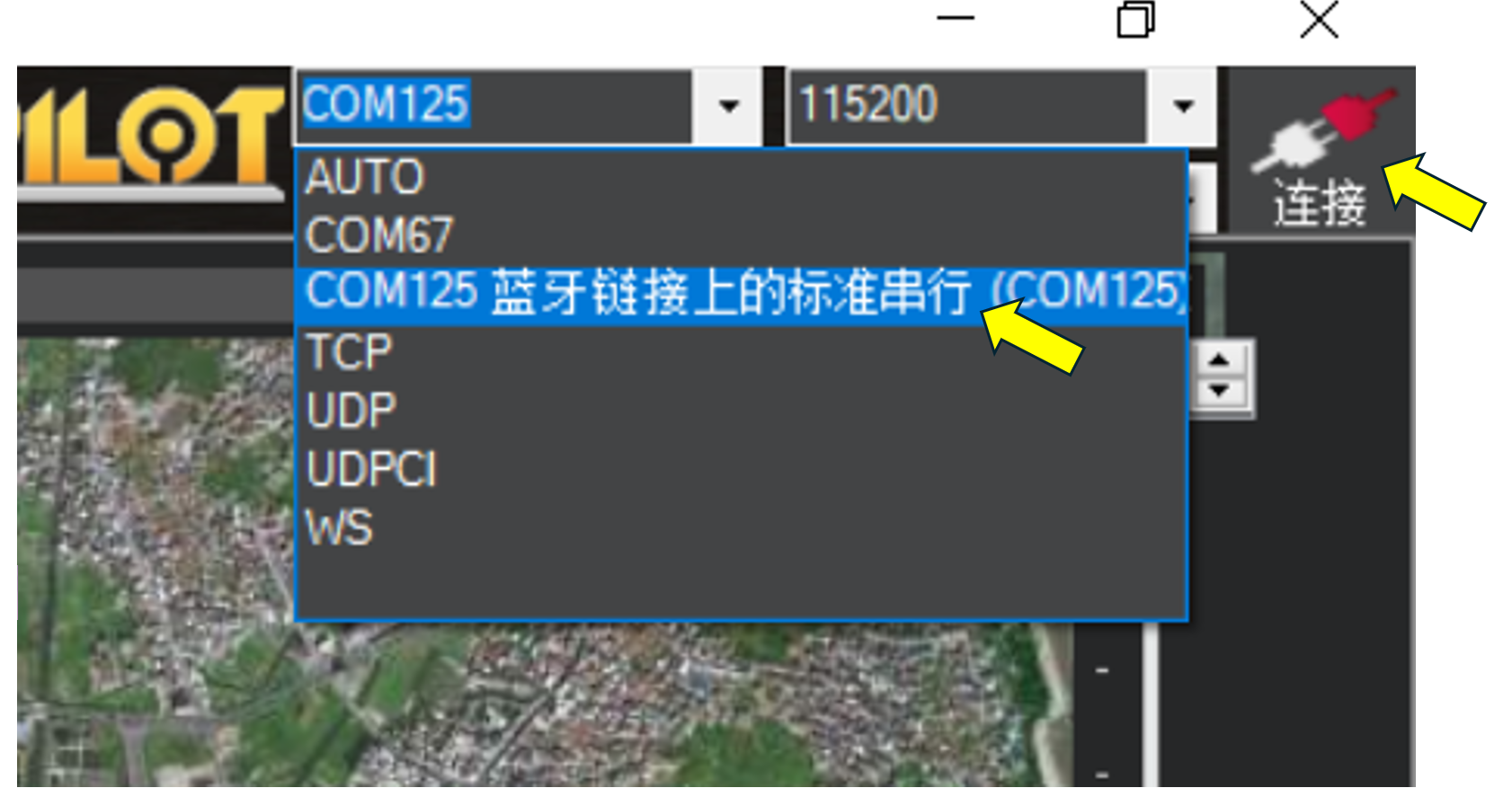
The ground station now connects to the flight controller through the Bluetooth port and reads flight-controller data normally. Operation is equivalent to a USB connection. After the connection is established, normal configuration and tuning can be performed.
4: Connecting with the AeroEgg ground station app on an Android phone
Launch the installed AeroEgg ground station app. Tap “Connect” in the upper-left corner, select the connection method, tap “Bluetooth Telemetry,” and select “AET-405A-spp” from the Bluetooth device list.
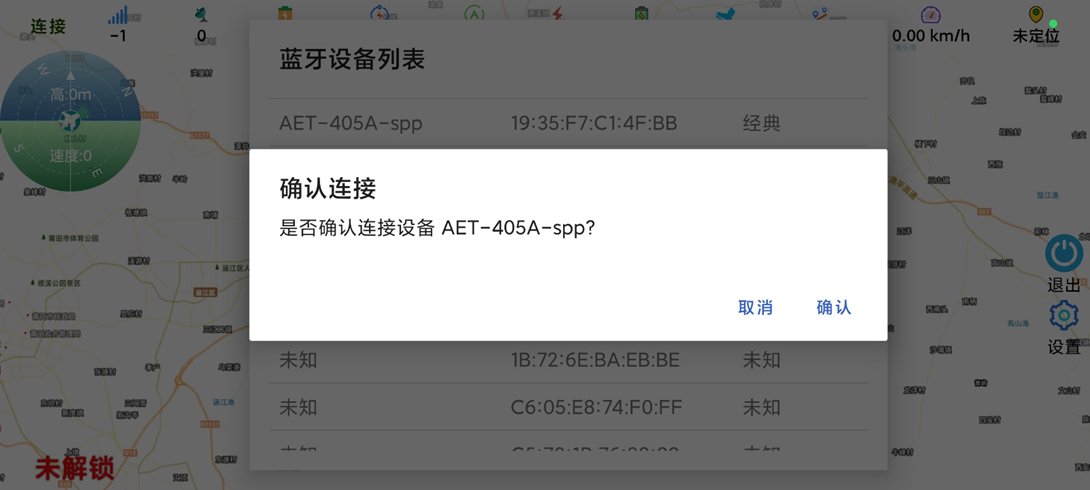
If the devices have not been paired previously, complete Bluetooth pairing once. After connection, the available operations and settings can be used normally. For detailed instructions, refer to the AeroEgg ground station user guide.
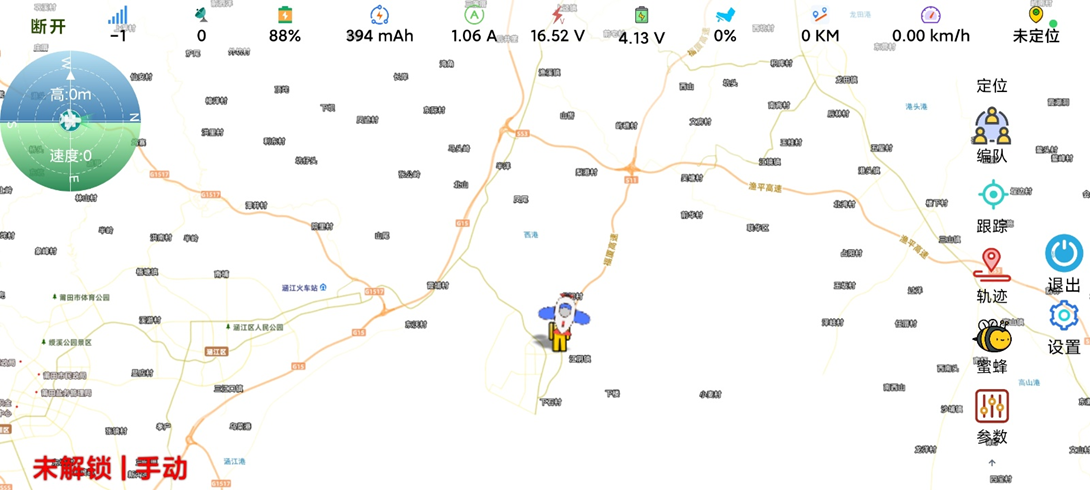
5. iPhone and iPad users can configure the Bluetooth connection with the RunCam Fly app.
Launch the RunCam Fly app and tap Settings > Connection Settings.
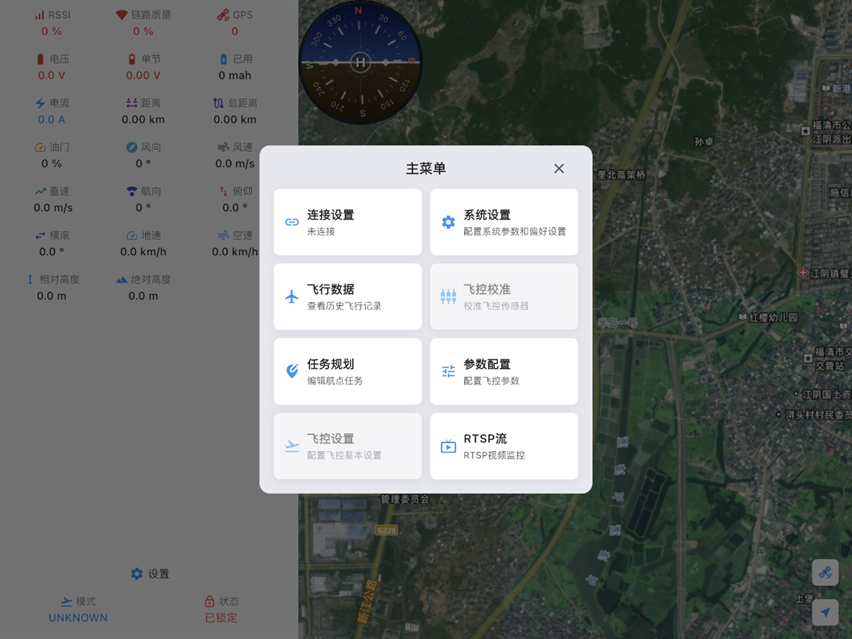
Under connection method, select “Bluetooth Connection” and tap “Search Devices.”
Select “AET-405A-ble” from the discovered Bluetooth devices and connect.
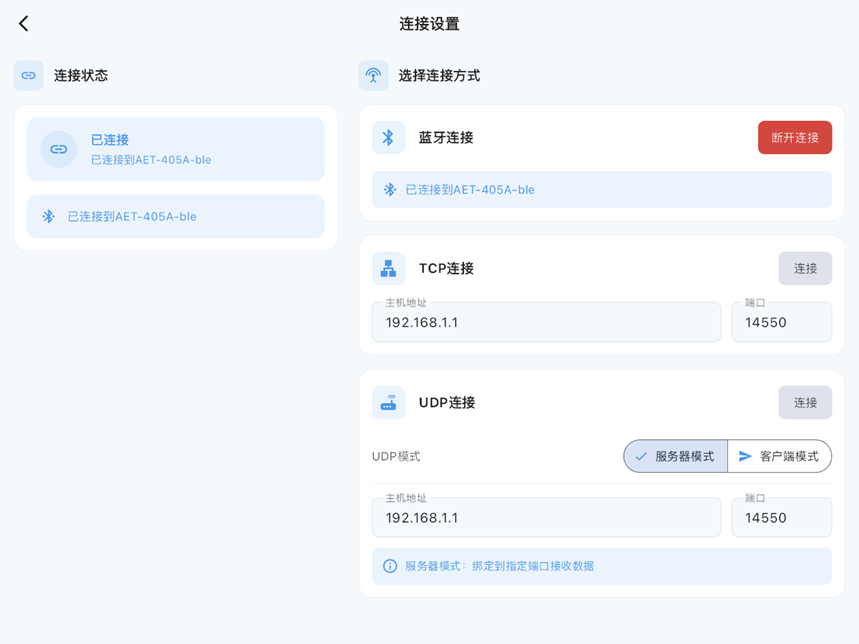
The first connection requires some time to load parameters. Monitor the parameter-loading progress in the lower-right corner.
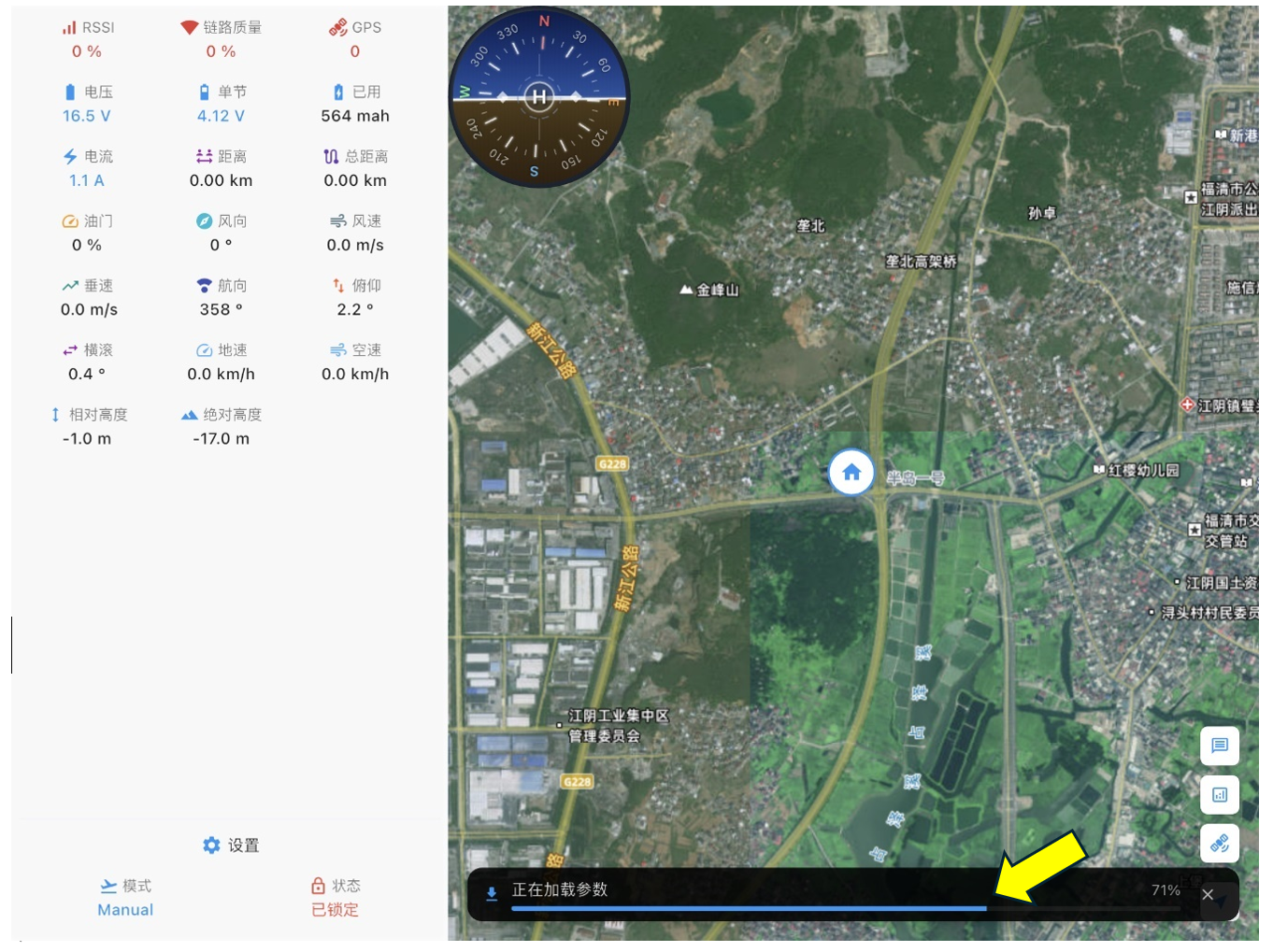
After connection is complete, tap the back arrow in the upper-left corner. You can then use the Apple device to configure and tune the flight controller over Bluetooth. For operating instructions, refer to the RunCam Fly user guide.