Flashing Flight Controller Firmware (AP by Default)
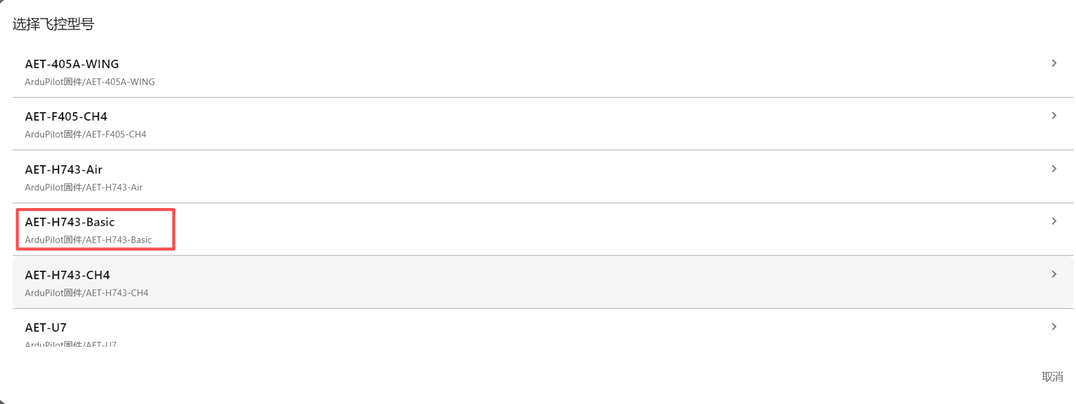
- Chapter 1: Flashing Flight Controller Firmware The AeroEgg Technology AET H743 Basic flight controller currently supports ArduPilot and INAV firmware. This chapter focuses on fixed-wing configuration and tuning with ArduPilot firmware and explains how to upgrade to the latest firmware.
1.1. Firmware Download Download the firmware from the AeroEgg Technology firmware site at https://download.aeroeggtech.com/ or the official ArduPilot site at https://firmware.ardupilot.org/Plane/stable-4.6.2/AET-H743-Basic Download the manufacturer-provided arduplane_with_bl_AET-H743-Basic_V4_5_7 HEX firmware file, which includes the BL bootloader, to the computer.
1.2 AGC Configuration and Tuning Software Download https://download.aeroeggtech.com/?dir=AGC
1.3 Flashing Procedure
: Open the AGC configuration and tuning software.
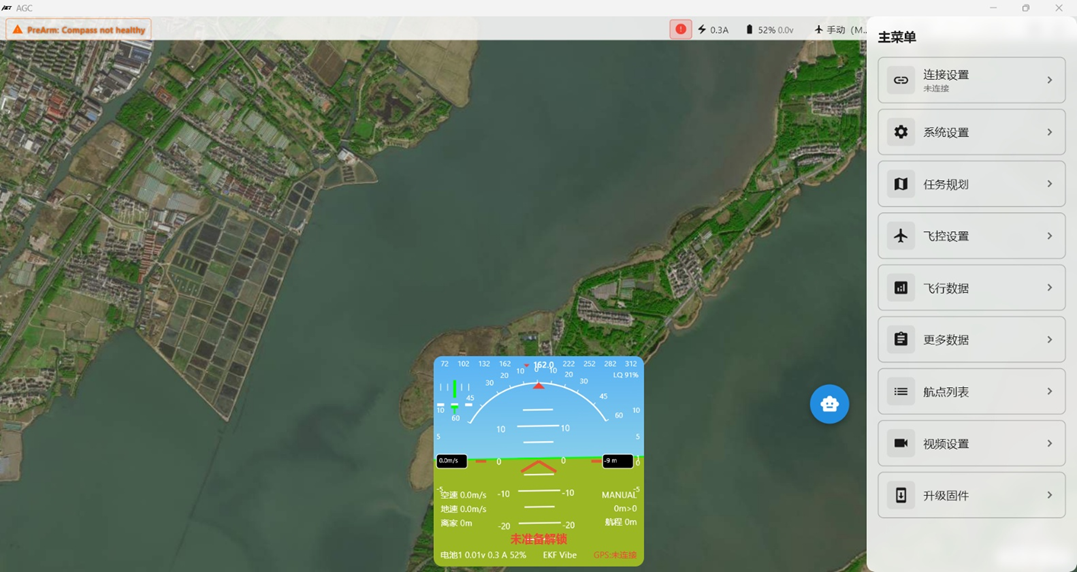
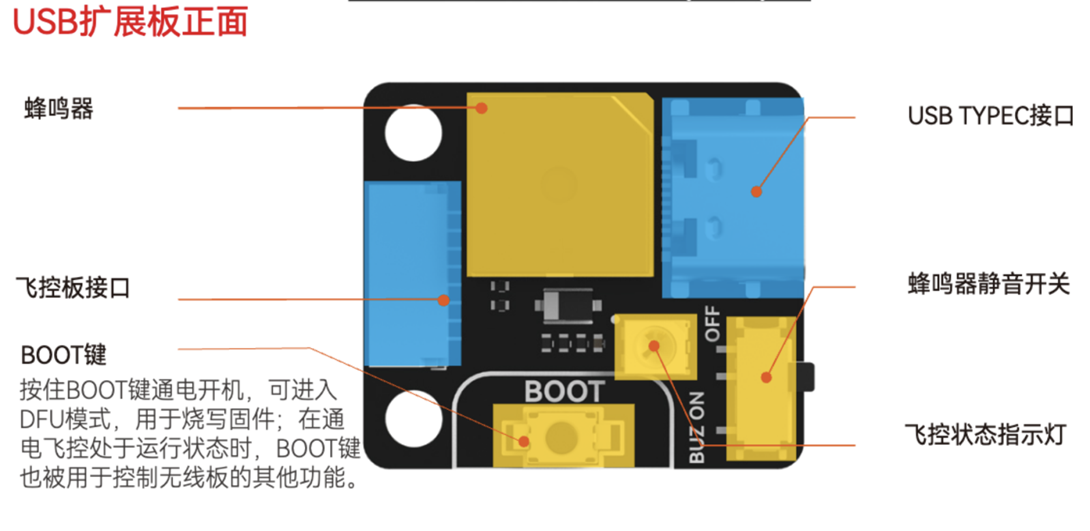
Disconnect all peripherals from the H743 flight controller, including the GPS, video transmitter, receiver, airspeed sensor, optical-flow sensor, servos, and ESCs. Disconnect all power sources, including the USB Type-C cable and battery. Press and hold the Boot button on the flight controller USB expansion board, then connect the flight controller to the computer with a USB Type-C data cable. Keep the button pressed until the connection is established.
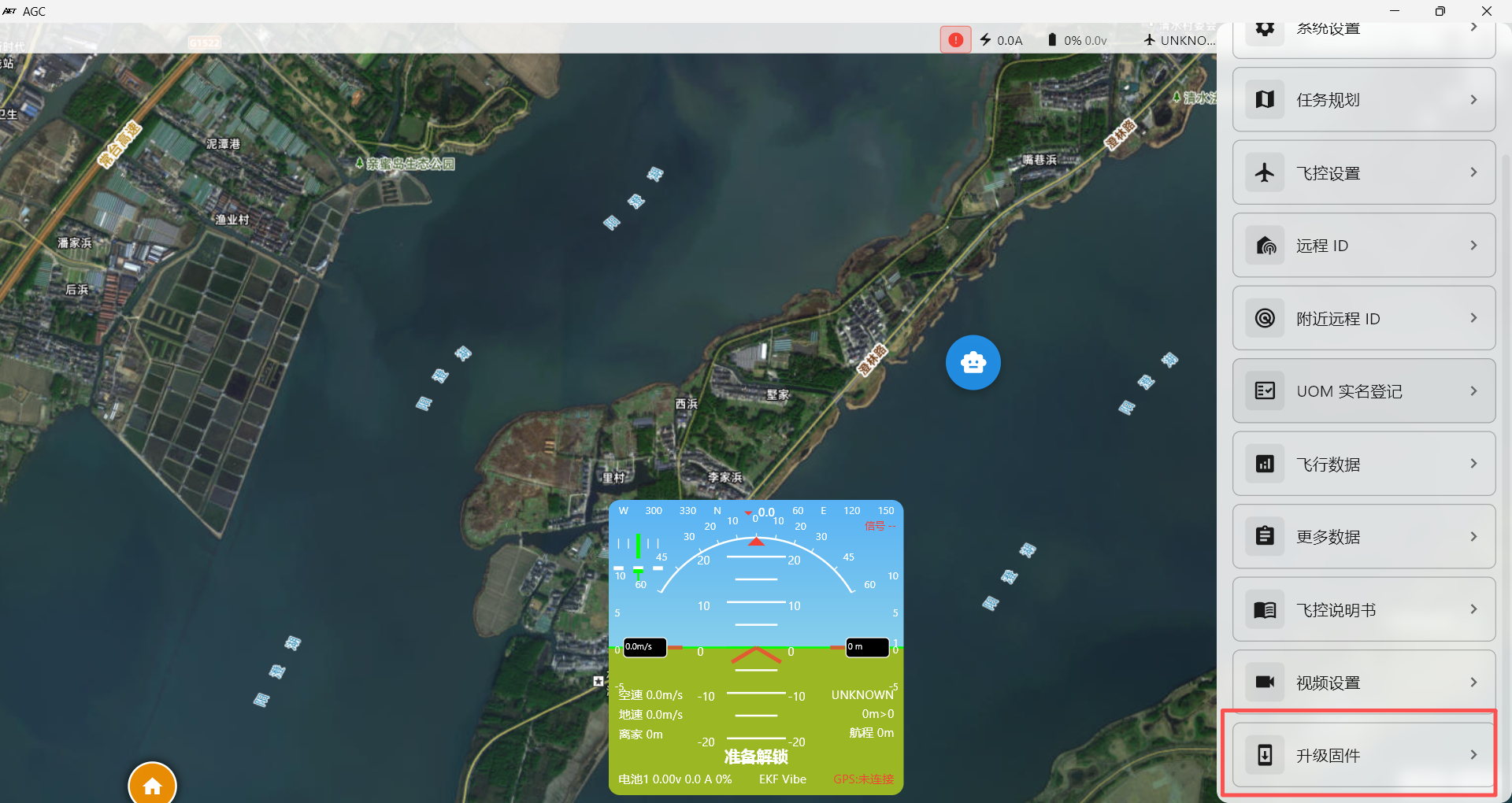
DFU should now appear in the upper-left corner of the AGC ground station. Release the Boot button on the USB expansion board, then open Settings in the lower-right corner and select Upgrade Firmware.
AGC provides two firmware-source options: select a local file or download the firmware from the network.
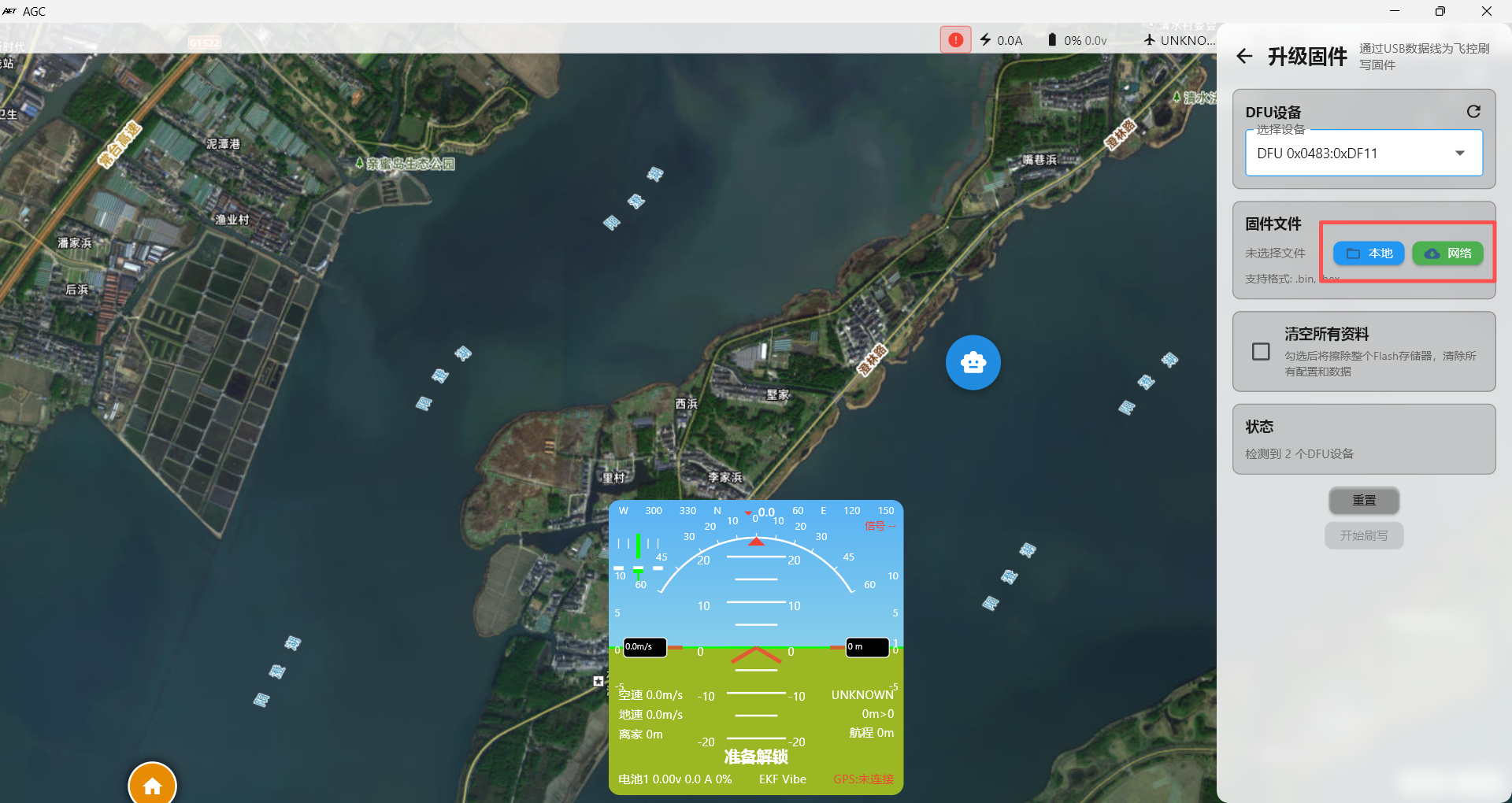
The default firmware is AP fixed-wing firmware with VTOL support. If you are using a fixed-wing or VTOL aircraft, reflashing is not required.
Click Flash Firmware. In the AGC ground station, first select the option to erase all existing data from the flight controller.
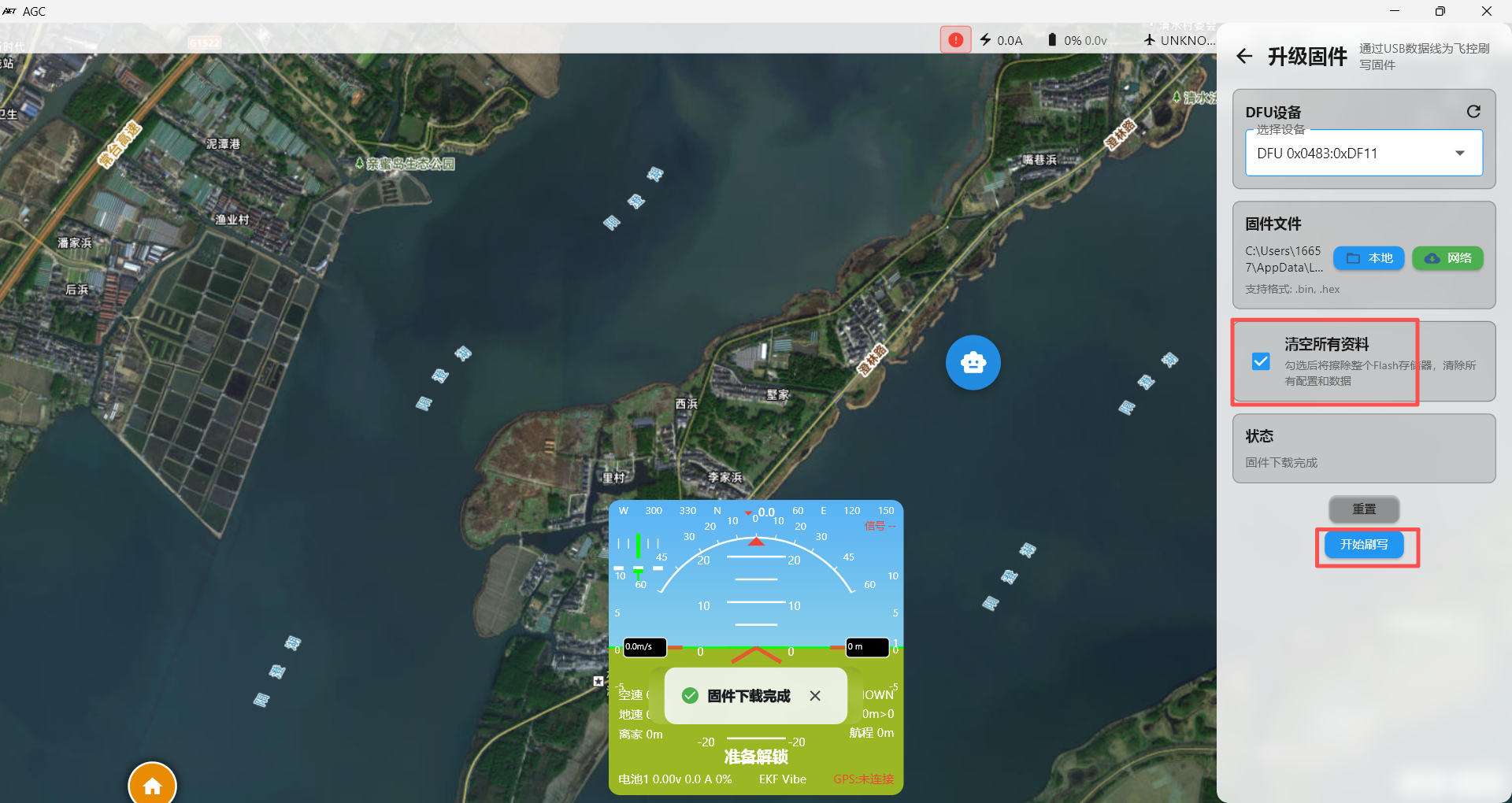
After flashing is complete, verification starts automatically.
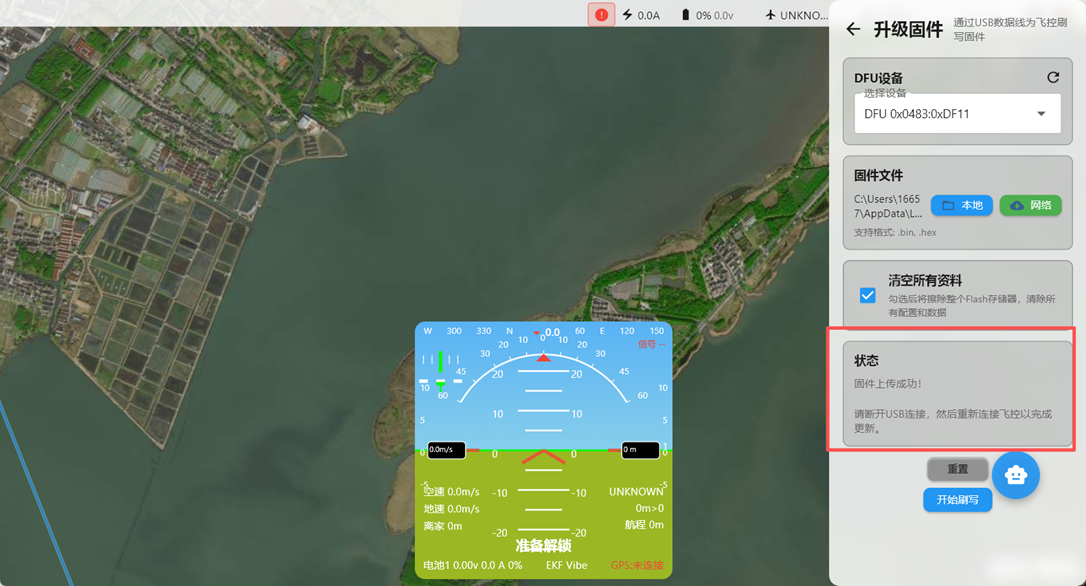
When Flashing Successful is displayed, the flight controller firmware has been written successfully. Power-cycle the flight controller, then reconnect the USB cable to the AGC ground station.
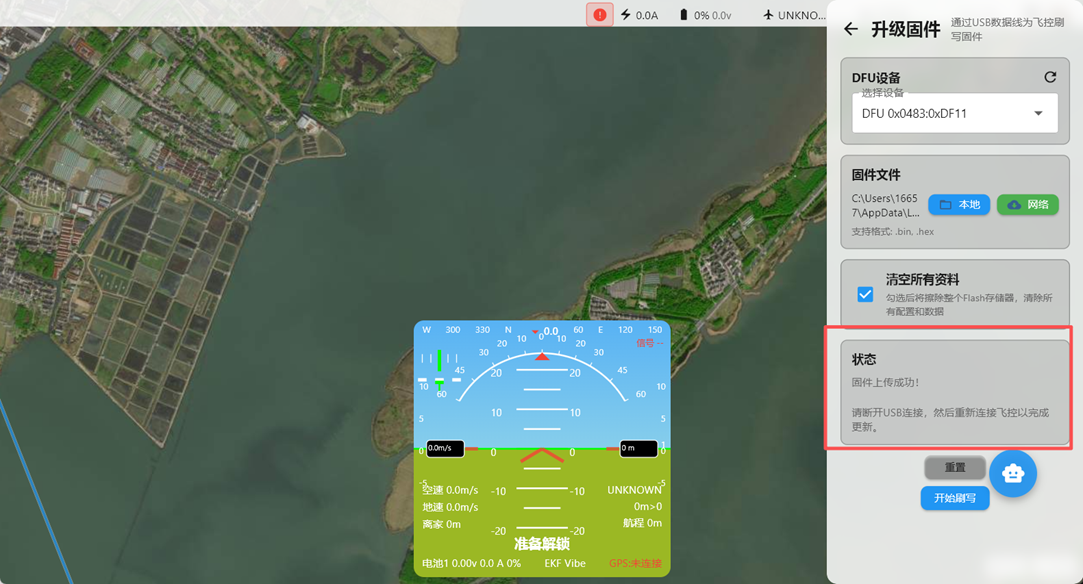
After flashing, disconnect the USB data cable, wait 1-2 seconds, and reconnect it. In the AGC ground station, click Settings in the upper-right corner, then open Connection Settings → USB Serial Connection → Device Properties, select the connection, exit Connection Settings, and open Flight Controller Settings → Full Parameters → Reset Parameters.