DFU Mode Not Detected
Some computers may fail to detect DFU mode because of a driver issue. In Windows Device Manager, expand “Universal Serial Bus devices” and check whether a “DFU in FS Mode” device is listed.
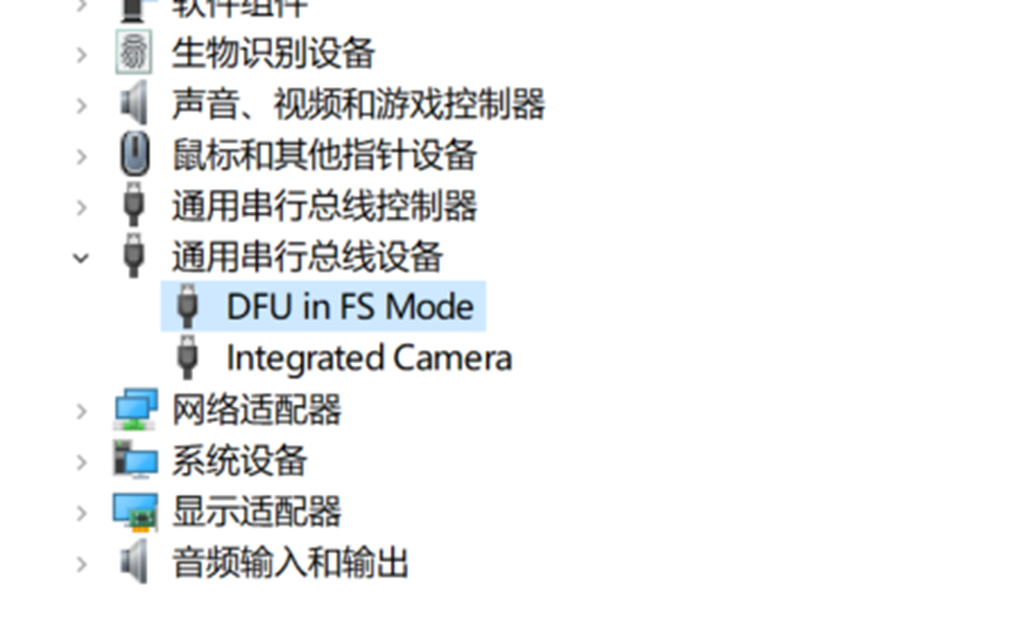
If the device or port driver is not recognized, use Zadig to install the driver.
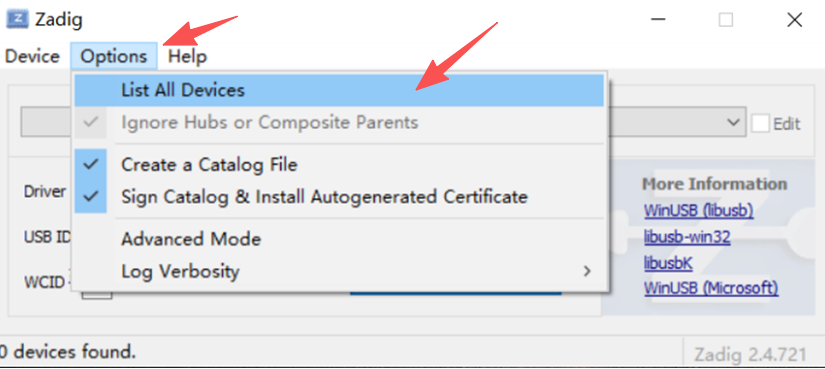
Run Zadig, downloaded from https://download.aeroeggtech.com/ or (https://download.aeroeggtech.com/). Click Option and select the first item in the drop-down menu, “List All Devices.”
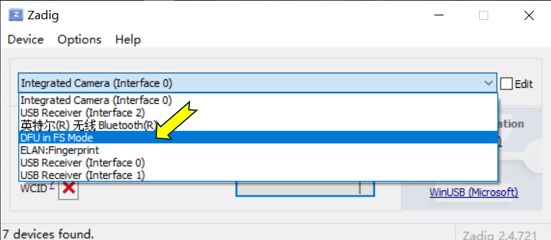
Then select “DFU in FS Mode” from the device drop-down list.
Click the “Upgrade Driver” button to install the driver.
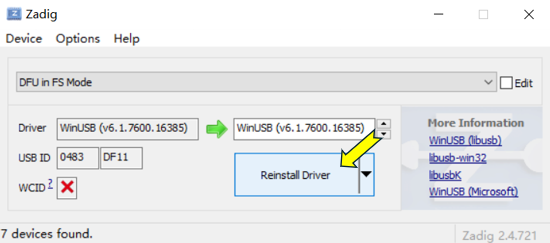
Wait for the driver installation to complete, then disconnect the flight controller USB cable. Hold down the Boot button while reconnecting USB; DFU mode should now be detected correctly.
Download the firmware from the network and select it.
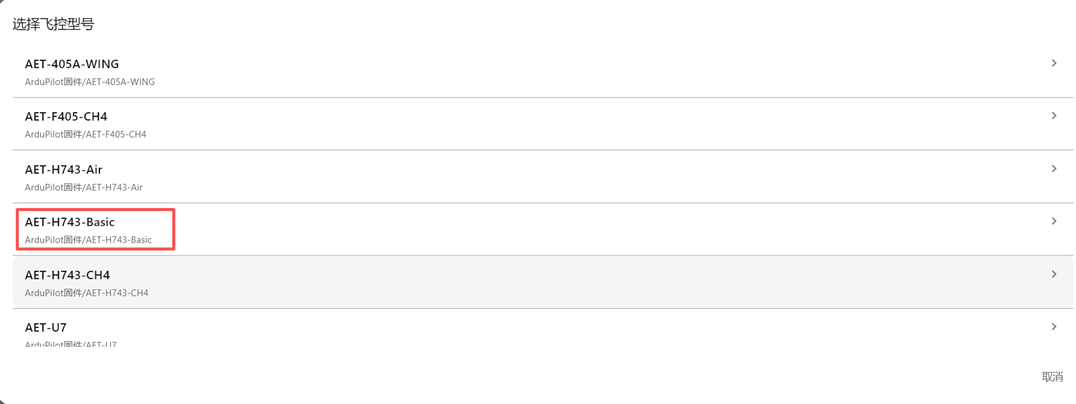
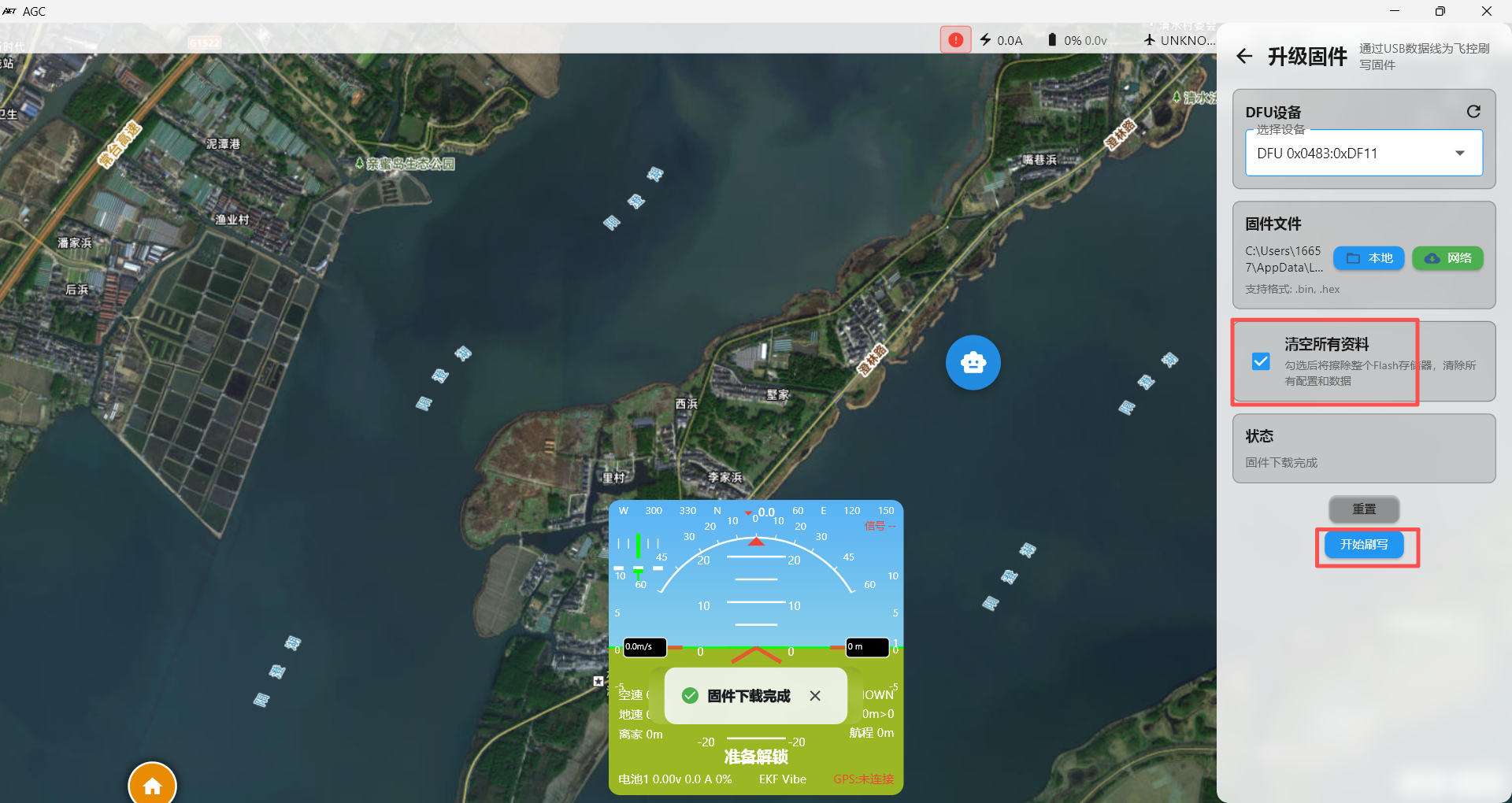
Click “Flash Firmware.” In the AGC ground station, first select the option to erase all existing data from the flight controller.
If flashing fails, check whether two DFU entries are available.
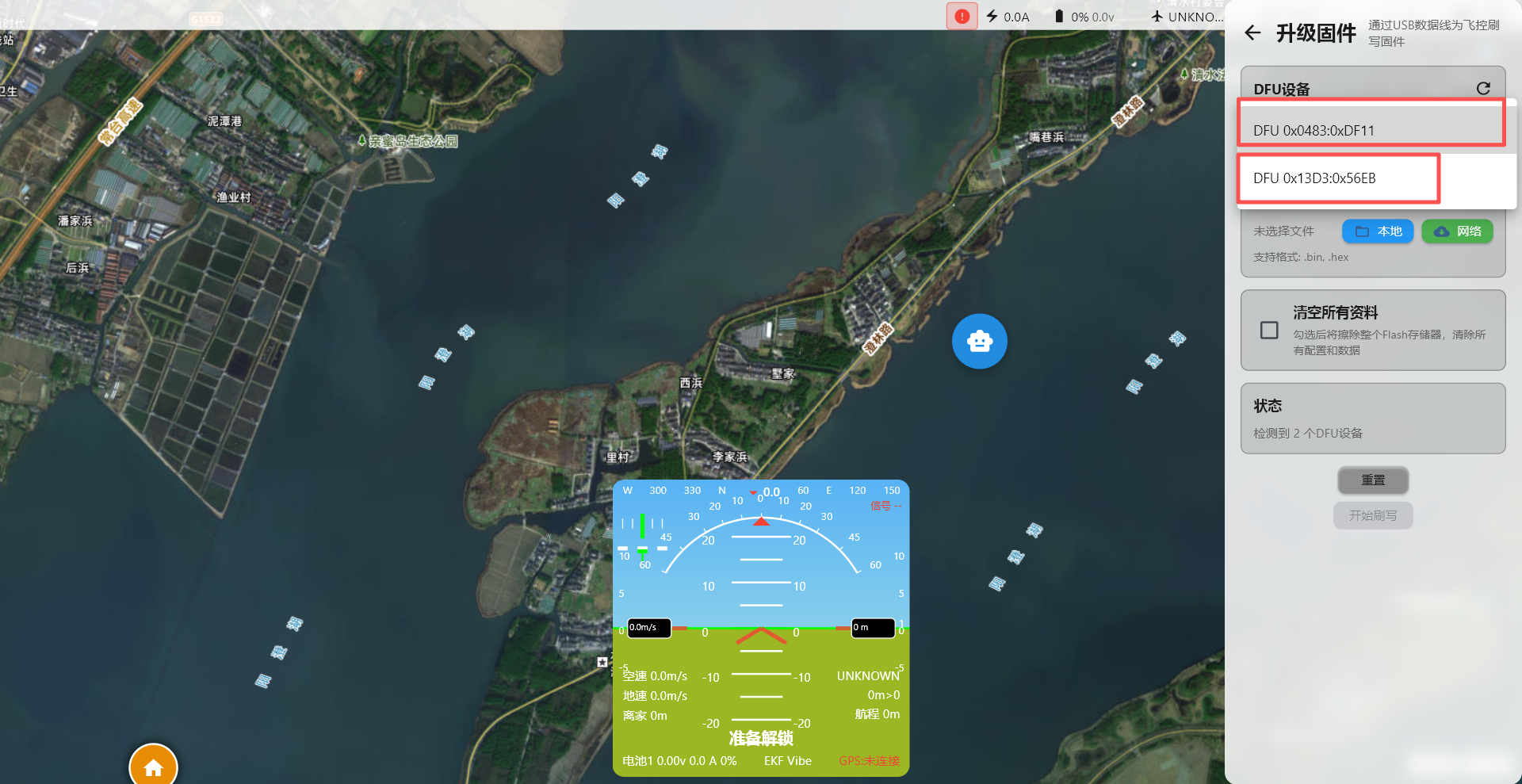 1. Select the correct DFU entry.
2. If erasing fails, reconnect the device and flash again.